
Helldivers 2 has taken cooperative top-down shooting to a whole new level, with intense firefights, dynamic environments, and visually striking effects. While the gameplay is smooth on consoles, PC players have the added advantage of fine-tuning graphics settings to maximize performance and visual fidelity. In this guide, I’ll share practical tips on optimizing your PC graphics to get the best experience out of Helldivers 2.
Start with the Basics: Resolution and Refresh Rate
The first step is to ensure your display settings match your monitor’s capabilities. Running Helldivers 2 at your native resolution with a refresh rate that your monitor supports is essential. If you notice stuttering, consider lowering the resolution slightly or enabling dynamic resolution scaling in the settings.
Adjust Graphics Presets
Helldivers 2 comes with a variety of graphics presets ranging from Low to Ultra. Start with a preset close to your system’s capabilities, then fine-tune individual settings. Key areas to focus on include:
Shadows: Reducing shadow quality can significantly improve performance without heavily impacting visuals.
Anti-Aliasing: Use FXAA or TAA to smooth jagged edges without a massive hit to FPS.
Texture Quality: Keep textures at high if your GPU has sufficient VRAM; otherwise, medium textures often provide the best balance.
Optimize Effects and Post-Processing
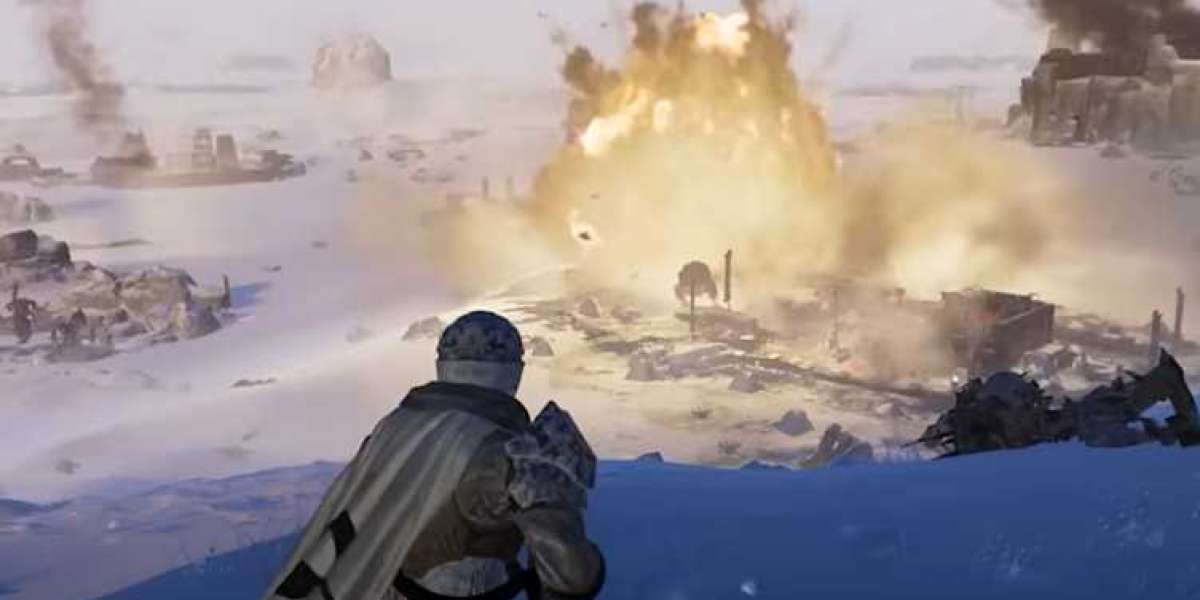
Effects such as explosions, particle systems, and lighting can make battles in Helldivers 2 look spectacular, but they are also resource-intensive. Consider lowering motion blur or depth of field effects if you’re experiencing frame drops. Experimenting with these can help maintain clarity during chaotic firefights.
Advanced Tweaks for Performance
For PC enthusiasts, a few extra tweaks can boost performance even further:
V-Sync: Disable it if you are experiencing input lag, or use adaptive sync if your monitor supports it.
Field of View (FOV): A wider FOV improves situational awareness but may reduce performance slightly on lower-end systems.
Anisotropic Filtering: Adjusting this can enhance texture clarity at a distance without a huge performance cost.
Keep Your Drivers and Game Updated
It’s easy to overlook, but keeping your GPU drivers up-to-date ensures optimal compatibility with Helldivers 2. Developers also frequently release patches that improve performance and fix graphical glitches, so make sure your game is fully updated.
Balancing Fun and Economy
While fine-tuning graphics, you might also want to focus on in-game progression. Some players look for ways to efficiently upgrade equipment or unlock cosmetics. If you’re exploring the economy, you might want to buy Helldivers 2 medals or look for cheap Helldivers 2 super credits to enhance your gameplay without spending excessive time grinding.
Optimizing PC graphics for Helldivers 2 is all about balancing performance and visual quality. By adjusting settings carefully and keeping your system updated, you can enjoy smoother gameplay and more immersive battles. Once your graphics are dialed in, you’ll find it easier to focus on strategy, teamwork, and achieving mission objectives without distraction.